Table of Contents
Introduction
Running my first Java program was one of those small but unforgettable victories. I had finally entered the world of programming — a place where logic meets creativity.
In this post, I’ll share how I installed the Java Development Kit (JDK), set up VS Code, and wrote my first “Hello World” program. If you’re new to coding and confused where to start, this guide for you through every step in plain language.
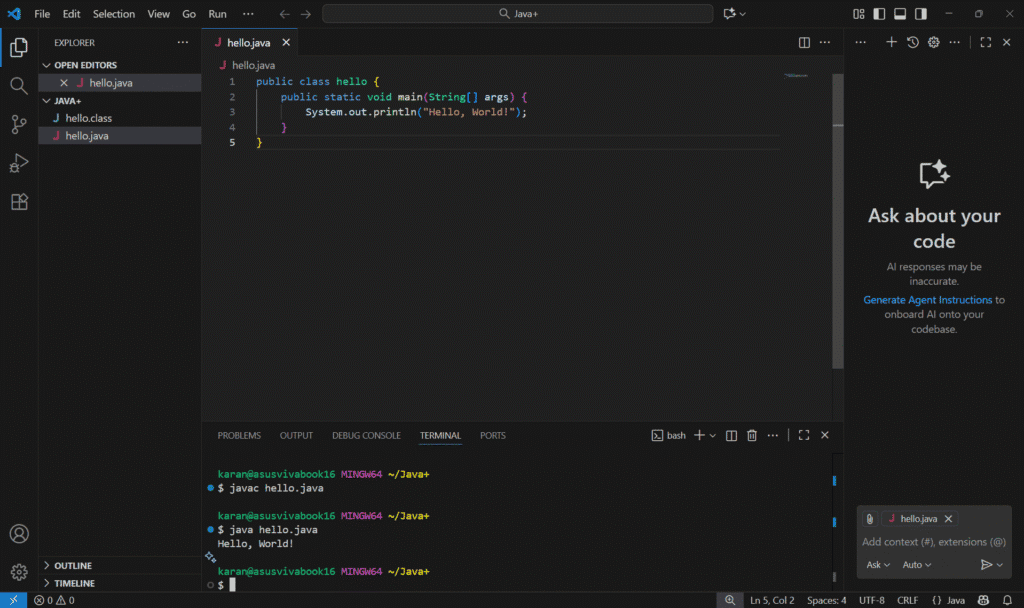
Right at the top, you’ll see my featured image — a screenshot of my own Hello World program running inside VS Code. That image marks the exact moment I saw my code come to life for the first time.
Setting Up Java (JDK)
To write any Java program, you first need to install the JDK (Java Development Kit).
The JDK is a package that includes everything Java needs to work:
- JRE (Java Runtime Environment) – runs the program.
- JVM (Java Virtual Machine) – executes the bytecode.
- Compiler (javac) – translates your human-readable code into bytecode.
How I Installed JDK
- Downloaded the latest JDK from Oracle’s official website.
- Chose the Windows x64 Installer and completed the setup.
- Verified the installation by typing this command in the terminal : java -version
- The version number confirmed everything was ready.
- At that point, my computer officially understood Java.
Setting Up VS Code for Java
Next, I installed Visual Studio Code (VS Code) — a lightweight editor that’s great for beginners.
To make it Java-ready, I added these extensions:
- Java Extension Pack
- Debugger for Java
- Code Runner
After that, I created a folder named Java+ and inside it a file called hello.java.
That’s where the real fun began.
Writing My First Java Program
The image you see above is my featured image — a real screenshot of my own code when I ran my first Java program in VS Code.
At that time, I didn’t know much about Java syntax or how everything worked. I simply wanted to see if I could make the computer respond to my command — and it did!
Let me explain what’s happening here, step by step, in the simplest way possible:
class Hello→ Think of this as a container where your code lives. You’ll learn more about classes when you study OOPs (Object-Oriented Programming) later.public static void main(String[] args)→ This is the starting point of every Java program. The computer looks for this line to begin running your code.System.out.println("Hello, World!");→ This tells the computer to print the message inside the quotes. That’s why you see “Hello, World!” on the screen.
At this stage, I didn’t worry about why we use words like public, static, or void. I just focused on understanding what each line does.
As I continue learning, especially when I reach OOPs concepts in upcoming lessons, all of these pieces will start connecting — classes, objects, and methods will make perfect sense.
For now, I’m happy that my first Java program ran successfully and marked the beginning of my coding journey.
Conclusion
I created a small blog this time, but it’s enough for now as my first blog on Java.
I successfully set up JDK and VS Code, created a folder named Java+, and inside it my very first Java file — hello.java.
I compiled the code using javac hello.java and then ran it with java hello.java in the terminal.
The program executed perfectly, and I saw the output: "Hello, World!"
This was my first Java program, and it was an exciting experience. I’m happy to share this moment with you and look forward to the next blog,
where I’ll explore variables and data types in Java.